
Copy text on Windows and Mac
Copy text from many places.
Paste it all as one block.
Every copy (Ctrl+C or ⌘C) joins a list. When you are ready, paste the full list in order. Optional bullets. No hopping back for each line.
Limited time launch price. No subscriptions ever.
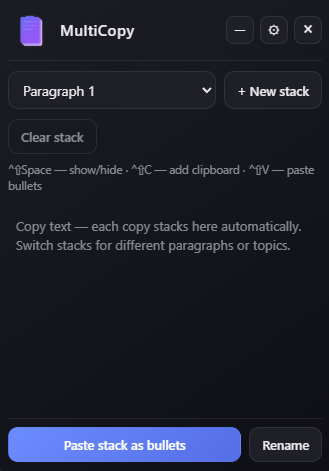
Quick demo
Each copy lands on the stack in order, same shortcuts you already use. When you paste, the whole list drops in one go, as plain text or bullets.
Built for copying text
The clipboard usually stores one clip. MultiCopy keeps each copy in a numbered stack. One paste drops the full sequence into your document.
-
Stack up lines of text as you copy
Highlight, copy, move on. Items land in order in your stack. Normal copy and paste still work anytime.
-
Paste all that text in one shot
One paste inserts every text snippet you stacked, top to bottom. No more pasting sentence by sentence from your history.
-
Turn pasted text into bullets
Optional: each line of copied text becomes a bullet when you paste, so notes and quotes read clearly in your doc or email.
-
Separate stacks for different text
Keep one stack for research quotes and another for scratch sentences, so copied text stays organized by task.
-
Same copy/paste you already use
Select and copy like always. MultiCopy stores copies in a list until you paste the stack, or paste only the last clip.
Light while you copy text all day
Runs quietly in the background. No heavy UI.
- Small footprint Stays in the background without eating CPU or memory.
- Shortcuts Hotkeys stay quick for stacking text and pasting.
- Save stacks (optional) Save a stack of copied text to disk so it survives a reboot.
Get MultiCopy
Pick your platform. After install, MultiCopy lives in the tray or menu bar.
Windows
-
After purchasing, download the
MultiCopy-Setup-v1.0.0.exefile from the provided link. - Run the installer and complete the setup wizard.
- After installation, MultiCopy lives in the system tray for quick access.
macOS
-
After purchasing, download the
MultiCopy-v1.0.0.dmgfile from the provided link. - Open the disk image and drag MultiCopy into Applications.
- Launch from Applications or the menu bar after first open.